Tenant administration
Set tenant identity and presentation
Configure the name, approved artwork, metadata, and public links shown across your tenant's Ahamo experience.
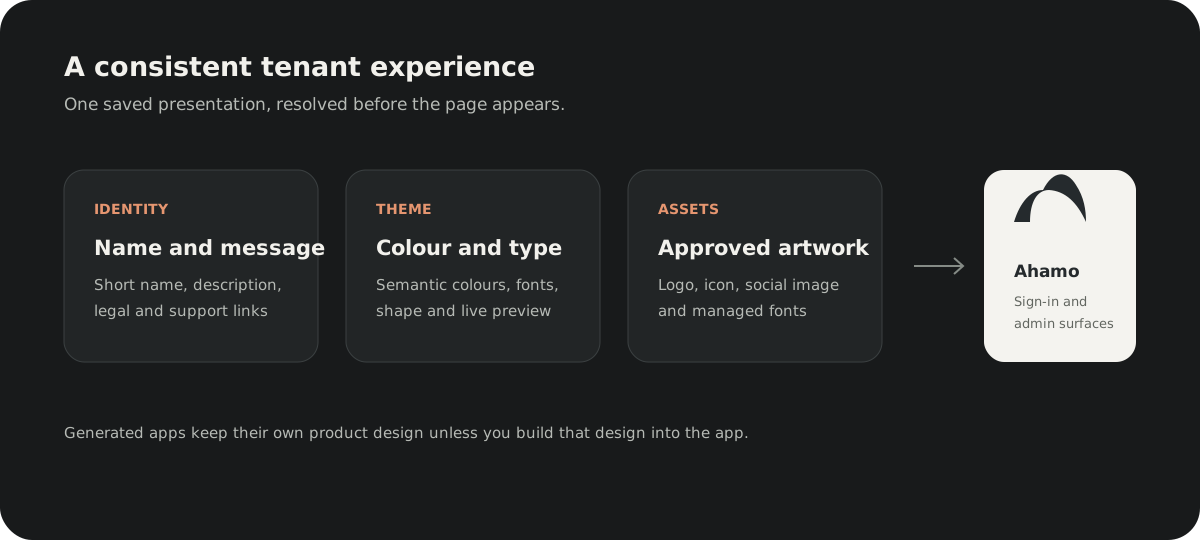
Brand and presentation controls the customer identity shown across the tenant's Ahamo sign-in and administration surfaces. It does not automatically redesign generated apps.
Configure the visible identity
Open Settings, then Brand. Use the available sections to set the tenant name, short name, description, approved artwork, browser metadata, and public support or legal links.
For images, choose a PNG, JPEG, or WebP file within the displayed limit. Ahamo validates and processes the file before it becomes the saved asset. Keep essential words out of artwork so the surrounding page can provide an accessible label.
Review before saving
The editor keeps changes as a draft until you choose Save changes. Review the live preview, light and dark appearance, and public link destinations. Use Discard changes to remove the draft without altering the saved presentation.
If another administrator saves first, compare the previous, latest, and your draft values. Keep your edits only after reviewing the latest version. This prevents one administrator from silently overwriting another's work.
Know the current boundary
Identity, image assets, browser metadata, and public contact or legal links are supported. Email-presentation fields are not documented as affecting delivered email because a customer-facing delivery path is not yet verified. Domain and email-domain configuration are outside this guide.
Continue with Theme your tenant for colour, typography, shape, and managed fonts.