Teams and access
Understand access decisions
Explain why a person can or cannot open an app, then remove a direct role or apply an explicit block at the right scope.
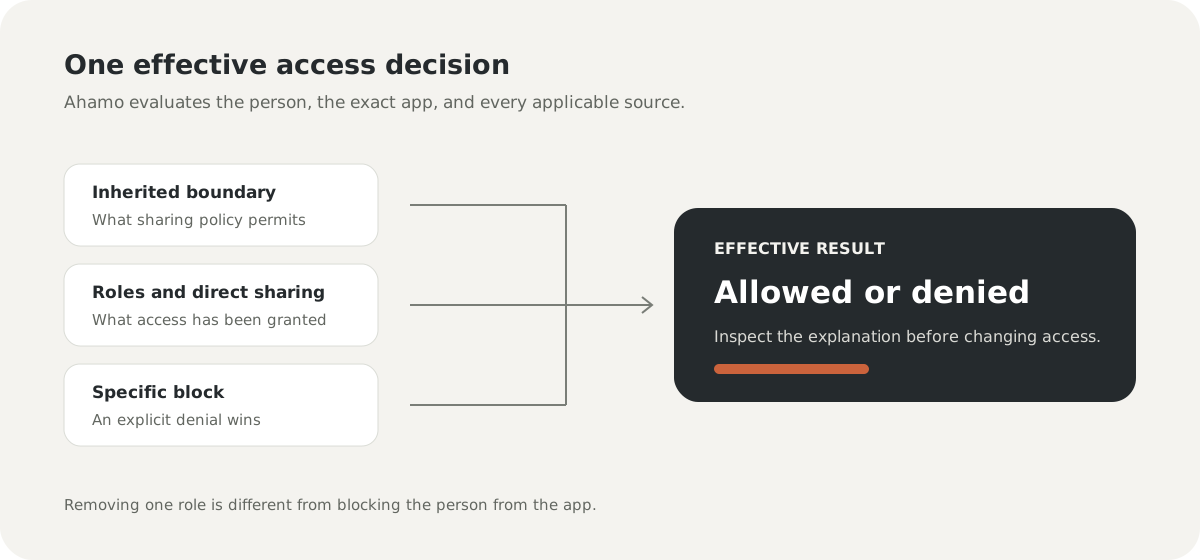
Ahamo evaluates access for one person, one exact resource, and one action. The result can come from inherited policy, a role assignment, a direct share, or a specific block.
Read the explanation
Open the app's Access dialog, choose a person, then choose Review access. The effective-access list shows each action as Allowed or Not granted and explains the reason. Use that explanation instead of guessing from one visible role.
Common results include:
- an applicable role grants the action;
- no applicable role grants it;
- the governing policy prevents it;
- the person's tenant membership is inactive; or
- an explicit block overrides other grants.
Choose the smallest correction
Remove a direct role when only that assignment is no longer intended. Change the app to Restricted access when inherited access is too broad for the app. Apply Block access when one person must be denied even if another grant would otherwise allow them.
Removing a block does not grant access by itself. The person's remaining roles and inherited policy apply again.
What revocation does
When access is revoked, Ahamo closes protected builder content and rejects later protected operations for that app. Revocation cannot recall information a person legitimately viewed or exported before access changed. Follow your organisation's incident process if previously viewed information is sensitive.
If another administrator changes access while your dialog is open, Ahamo refreshes the saved state and preserves your draft for review. Do not repeat the old command without checking the new effective result.